In today’s hyper-connected D2C landscape, your smartphone is more than just a device; it’s your mobile command center for order fulfillment, social commerce. instant customer engagement. The constant dread of a rapidly depleting battery can severely impact real-time operations, leading to missed opportunities or interrupted workflow, especially when managing live sales or urgent customer queries.
This practical tutorial delivers actionable strategies to significantly extend your smartphone’s daily battery endurance, ensuring you remain powered throughout crucial business hours.
We’ll explore efficient app management, display optimization. network settings that combat parasitic drain, enabling uninterrupted service for your customers and seamless management of your direct sales channels, avoiding the mid-day scramble for a charger and maintaining peak operational readiness in a competitive market.
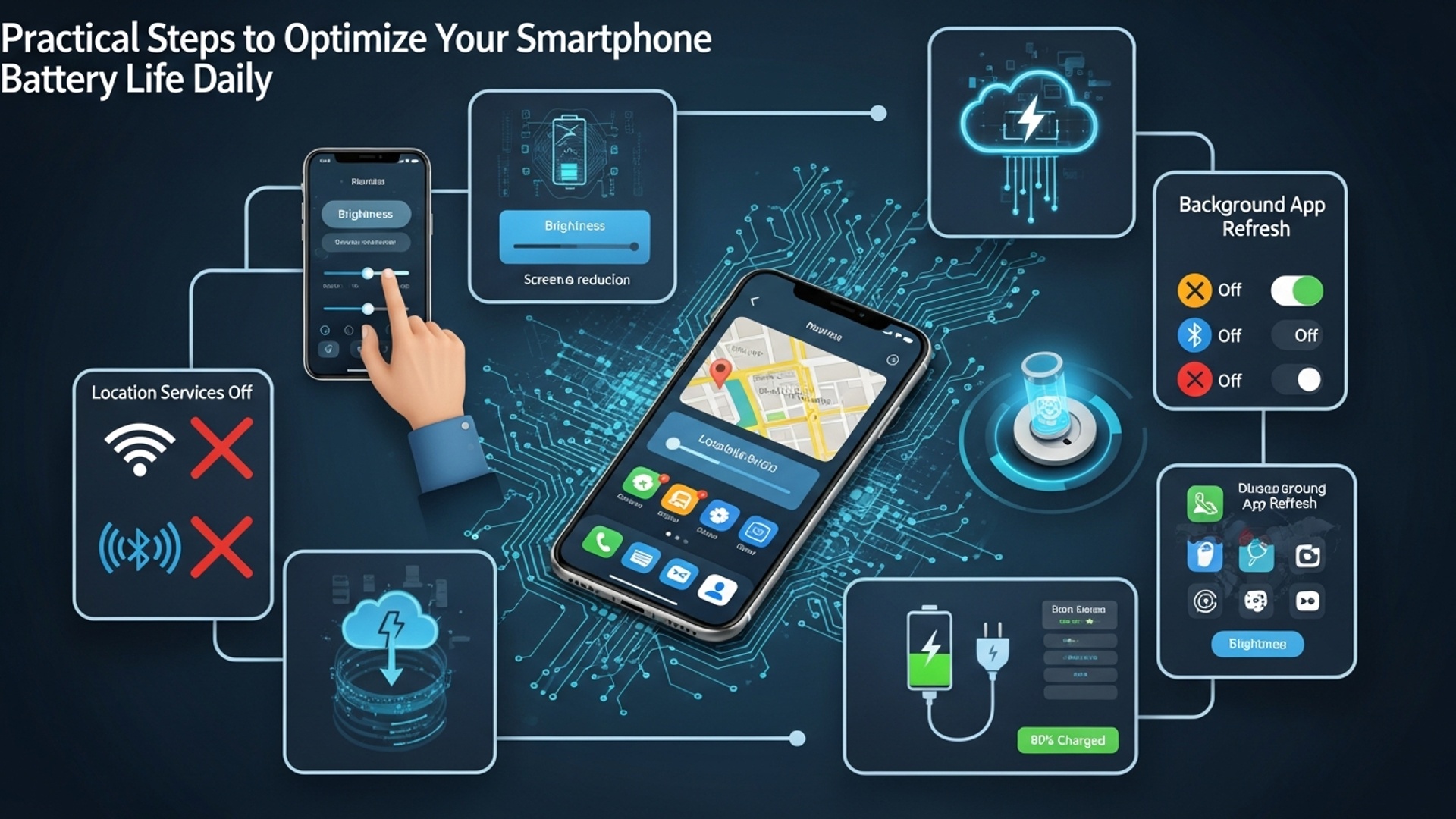
Mastering the Fundamentals: Your Daily Battery Optimization Tutorial
In the fast-moving world of D2C, your smartphone is more than a communication device. It functions as your:
-
Mobile office
-
Customer support channel
-
Marketing dashboard
-
Payment processor
-
Content creation tool
When your battery dies, operations slow down. You may miss customer messages, delay campaign updates, or interrupt order processing.
This structured guide walks you through practical, easy-to-apply steps to extend your smartphone’s battery life daily.
Step 1: Understand What Drains Your Battery
Before making adjustments, identify the biggest power consumers:
-
Screen brightness
-
Background app activity
-
Location services
-
Push notifications
-
Weak network signals
Check your battery usage settings to see which apps consume the most power.
Step 2: Optimize Your Screen Settings
Your display uses more power than any other component.
Lower Screen Brightness
Set brightness manually instead of relying on auto-brightness. Many devices keep screens brighter than necessary.
Indoors, reduce brightness to the lowest comfortable level.
Reduce Screen Timeout
Shorten auto-lock time to 15–30 seconds. Every extra second of an active display adds up throughout the day.
Activate Dark Mode
If your device uses an OLED or AMOLED screen, Dark Mode reduces power usage because black pixels turn off completely.
This is especially helpful if you:
-
Edit content
-
Monitor analytics
-
Respond to messages frequently
Remove Live Wallpapers and Excess Widgets
Live wallpapers consume processing power. Replace them with static images.
Remove widgets that update constantly, such as:
-
Weather refreshers
-
Stock tickers
-
News feeds
Step 3: Manage Background App Activity
Apps often drain battery even when unused.
Disable Background App Refresh
Turn off background refresh for non-essential apps.
Keep it enabled only for critical business apps such as:
-
Messaging tools
-
Order notifications
-
Payment platforms
Limit Location Services
Set most apps to:
-
“While Using”
-
Or “Never”
Only navigation or delivery apps need continuous access.
Reduce Push Notifications
Every vibration, sound, or screen wake consumes power.
Keep notifications for:
-
Orders
-
Direct messages
-
Critical alerts
Disable non-essential alerts like social “likes” or app promotions.
Remove Battery-Heavy Apps
Review battery usage statistics weekly. Uninstall apps that consume high power but add little value.
Step 4: Improve Connectivity Habits
Wireless radios consume significant energy.
Use Wi-Fi When Available
Wi-Fi typically uses less power than mobile data.
Turn off Wi-Fi when outside coverage areas to prevent constant scanning.
Disable Bluetooth and NFC
Switch them off when not actively using:
-
Wireless headphones
-
Smartwatches
-
Payment taps
Manage Weak Signal Areas
If cellular reception is poor, your phone works harder to maintain connection.
In low-signal areas:
-
Enable airplane mode temporarily
-
Re-enable Wi-Fi if available
Step 5: Charge Smartly
Battery health affects long-term performance.
Maintain 20%–80% Range
Lithium-ion batteries last longer when kept between 20% and 80%.
Avoid:
-
Frequent 0% drains
-
Constant 100% charging overnight
Use Certified Chargers
Low-quality chargers can reduce battery efficiency and lifespan.
Avoid Heat
Heat damages batteries.
Avoid:
-
Leaving phone in hot cars
-
Direct sunlight exposure
-
Heavy usage while charging
Step 6: Use Built-In Power Saving Features
Enable Low Power Mode
Both Android and iOS offer battery-saving modes.
These reduce:
-
Background activity
-
Animations
-
Mail fetch frequency
Use this during long event days or travel.
Update Software Regularly
System updates often improve battery optimization and fix hidden bugs.
Reduce Haptic Feedback
Disabling vibration for keypresses and system feedback saves small but consistent power.
Reduce Animations
Accessibility settings allow you to reduce visual motion effects.
Less animation equals less processing power.
Restart Periodically
Restarting clears stuck processes that may drain battery silently.
D2C Event Day Battery Strategy
On busy launch days, pop-ups, or campaign events:
-
Start with 80–90% charge
-
Enable Low Power Mode early
-
Turn off non-essential notifications
-
Carry a certified power bank
-
Avoid heavy editing while charging
Preparation prevents mid-day shutdowns.
Conclusion
Extending battery life is not about one drastic change. It is about consistent, small optimizations.
By adjusting:
-
Screen brightness
-
Background apps
-
Connectivity settings
-
Charging habits
You can gain several extra hours of daily performance.
For D2C professionals, this means fewer interruptions and smoother operations.
Start implementing these steps today. Over time, they will become second nature, giving you greater freedom and reliability from your most important business tool.
More Articles
How to Optimize Content for SERP Features and Boost Search Rankings
Implement Proven Free Methods to Dramatically Increase Your Website Traffic
Create Compelling D2C Product Content That Truly Drives Sales and Engagement
Unlock Higher Sales Essential Ecommerce Conversion Optimization Tips For Success

FAQs
What’s the absolute simplest thing I can do daily to save my phone’s battery?
The easiest way is to manage your screen. Reduce its brightness and set a shorter screen timeout. Your display is often the biggest power hog, so dimming it makes a big difference immediately.
Does closing all my background apps really help, or is that a myth?
It’s a bit of both! Force-quitting apps constantly can sometimes use more battery as they have to fully restart. Focus more on limiting ‘Background App Refresh’ for non-essential apps in your settings, especially for social media or news apps that constantly update.
Should I be using Dark Mode all the time to save battery?
Yes, especially if your phone has an OLED or AMOLED screen (most modern premium phones do). These screens turn off individual pixels for black areas, meaning dark mode uses significantly less power compared to a bright white interface.
What about charging? Are there ‘best practices’ to make my battery last longer?
Definitely! Try to keep your battery between 20% and 80% charged. Avoid letting it consistently drop to 0% or sit at 100% for extended periods. Also, try not to use your phone for heavy tasks while it’s charging, as this generates extra heat, which degrades battery health.
My phone battery seems to drain super fast even when I’m not using it much. What could be the culprit?
Check your location services settings – many apps might be using your GPS in the background. Also, review your app usage in battery settings to identify any rogue apps consuming excessive power. Push notifications from numerous apps can also keep your phone ‘awake’ frequently.
Is it okay to turn off Wi-Fi or Bluetooth when I’m not using them?
Absolutely! Leaving Wi-Fi or Bluetooth searching for networks or devices drains power. If you’re out and about and not connected to a network, toggle Wi-Fi off. Same goes for Bluetooth; turn it off if you’re not actively using a headset or other accessory.
What’s the deal with ‘Low Power Mode’ or ‘Battery Saver’? Should I use it all the time?
These modes are great for extending battery life when you’re low or need to make it through the day. They typically reduce background activity, visual effects. fetch less data. While you can use it all the time, it might limit some functionality, so it’s best for when you genuinely need to conserve power.
Does keeping my phone cool actually help the battery’s lifespan?
Yes, heat is a battery’s worst enemy! High temperatures accelerate battery degradation. Avoid leaving your phone in direct sunlight, in a hot car, or under a pillow while charging. Keeping it cool, especially during intensive use or charging, significantly prolongs its overall lifespan.